
How to Equip Attachments in Urban Reload
Last updated:
The Armory inside QUICK GUNS lets you equip attachments you own and browse options for your current weapon.
On this page
Find Armory Inside the Gun Shop
- Find the floating Gun Shop marker with the rifle icon, then enter the storefront labeled QUICK GUNS.
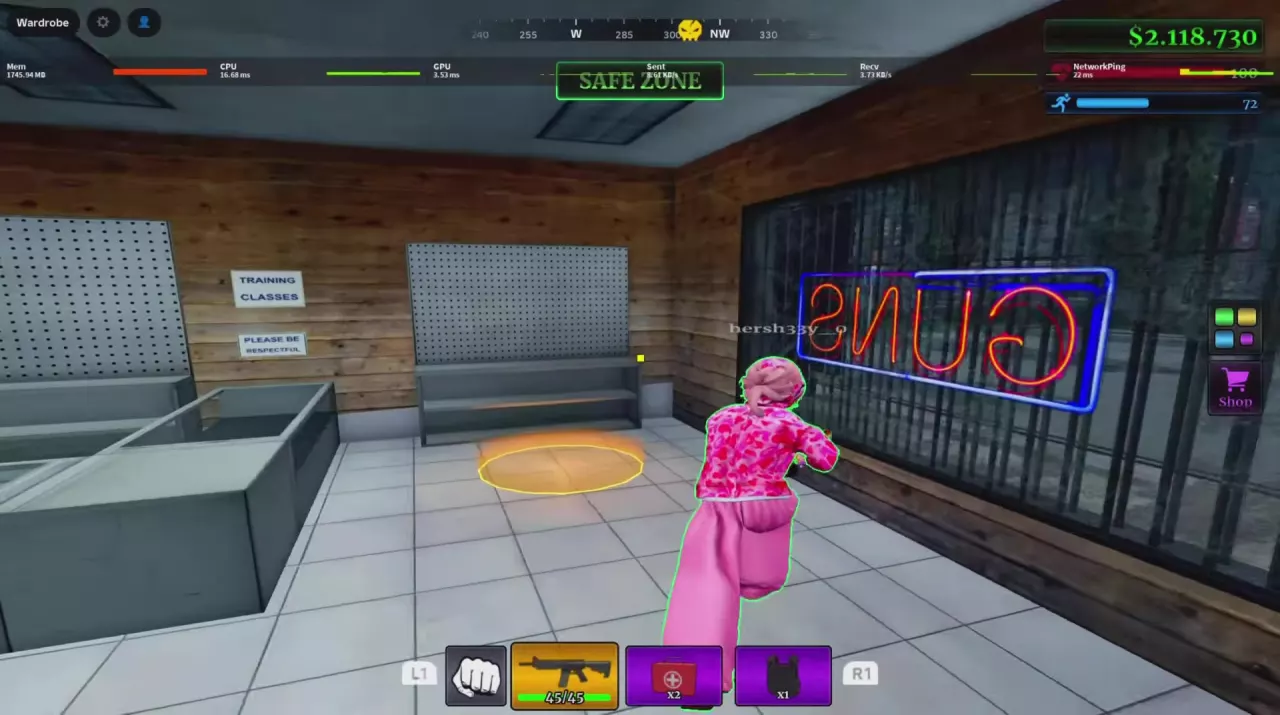
- Walk along the counter toward the window with the GUNS neon sign.
- Step into the yellow floor circle beside the window to open Armory for your current weapon.
The ATTACHMENT CASES counter is a separate entrance for obtaining random attachments. To equip something you already own, use the yellow circle. If you need an attachment first, find its source in the attachment directory and use the case guide for opening instructions.
Choose a Category and an Owned Attachment
Own the attachment you want to equip before selecting it in Armory.
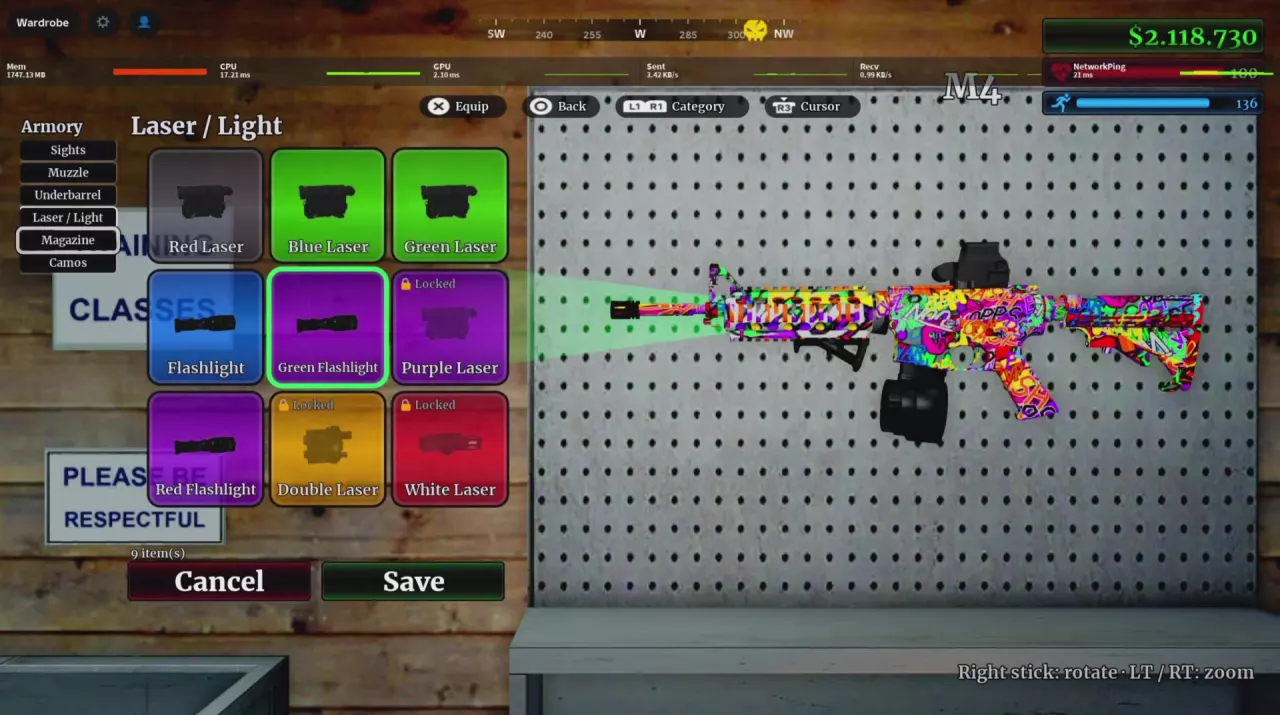
- Choose a category: Sights, Muzzle, Underbarrel, Laser / Light, Magazine, or Camos.
- Find the attachment by name. Locked marks a locked item; choose an attachment you own.
- Use the displayed Equip control for your selection.
In the M4's Armory menu, these similarly named options are separate items:
- Green Flashlight and Green Laser: both appear under Laser / Light, but they are distinct entries. Read the full name when choosing between them.
- Drum Mag and Double Drum: both appear under Magazine. Drum Mag has a single round drum; Double Drum has two joined drums.
- Default Mag: appears under Magazine with the Default label.
These category examples apply to the M4. Use your current weapon's Armory menu to find its options. For the M4's attachment list and weapon details, see the M4 guide.
Read the Controller Prompts
For the controller layout in Armory, use these prompts:
| Input | Action |
|---|---|
| × | Equip the selected attachment |
| ○ | Back |
| L1 / R1 | Change category |
| R3 | Cursor |
| Right stick | Rotate the weapon preview |
| LT / RT | Zoom the weapon preview |
Save and Cancel are at the bottom of the Armory menu, beneath the attachment cards.